

Inviting Team Members
Only organisation Admins can invite new members.1
Go to Organisation Settings
Click your profile icon in the bottom of the left sidebar, then click the gear icon () next to your organisation name.
2
Click Invite Member
Click the Invite Member button in the top-right corner.
3
Enter their email
Enter the email address of the person you want to invite.
Use the email they’ll sign in with (their GitHub or Google email). If you’re unsure, ask them which email is associated with their GitHub/Google account.
4
Select a role
Choose their role:
- Member - Can work on projects but can’t manage organisation settings
- Admin - Full access including member management
5
Send invitation
Click Send Invitation. They’ll receive an email with instructions to join.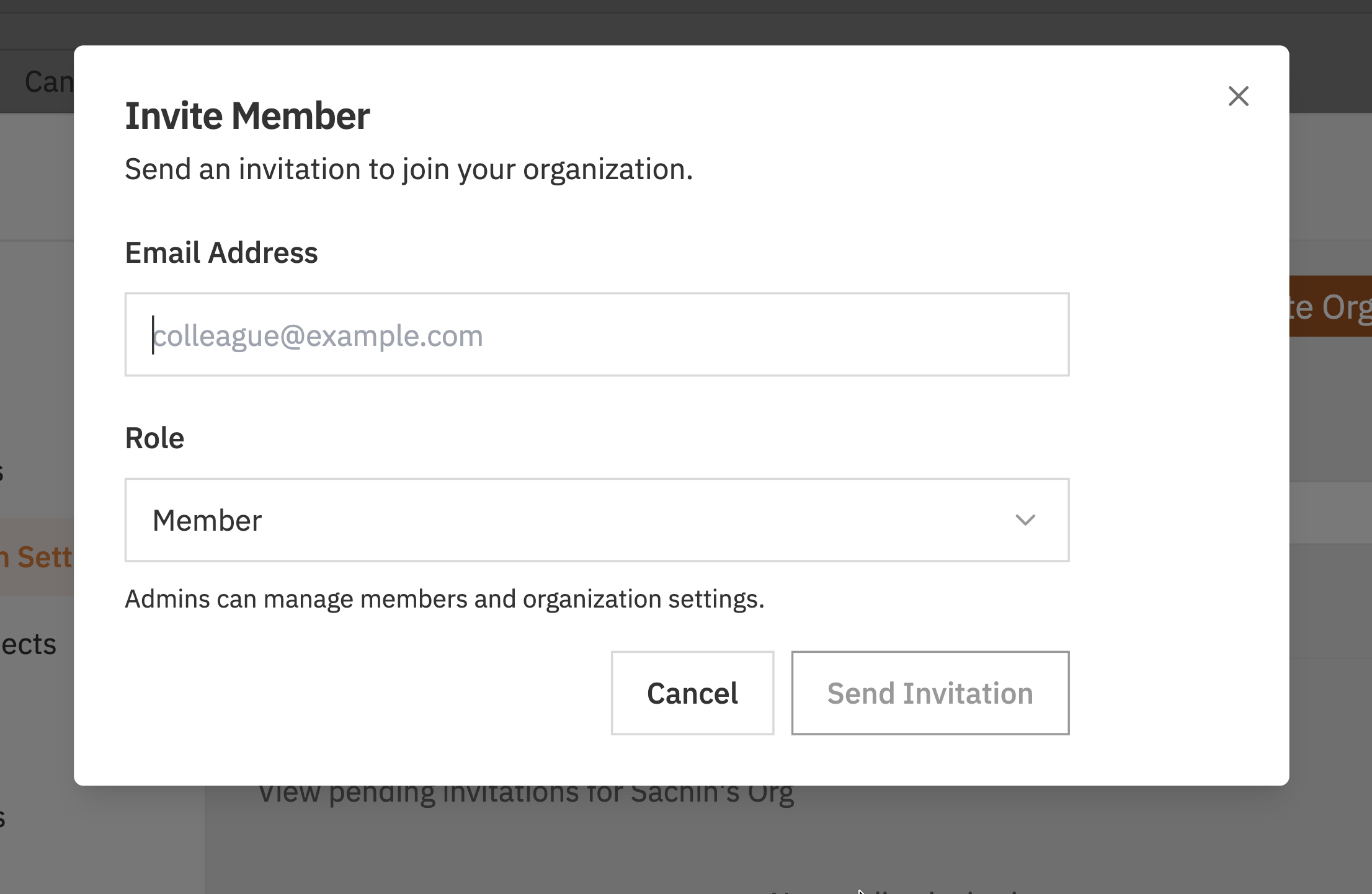
What Happens After Inviting
- The invitee receives an email with an invitation link
- They click the link and sign in (or create an account)
- They’re automatically added to your organisation
- They appear in your members list
Viewing Pending Invitations
Pending invitations are shown in Organisation Settings above the Members list. Only Admins can see pending invitations. Each pending invitation shows:- Email address - Who was invited
- Expiry - Invitations expire after 7 days
- Revoke button - Cancel the invitation if needed
Managing Members
Viewing Members
All current members are listed in Organisation Settings under the Members section.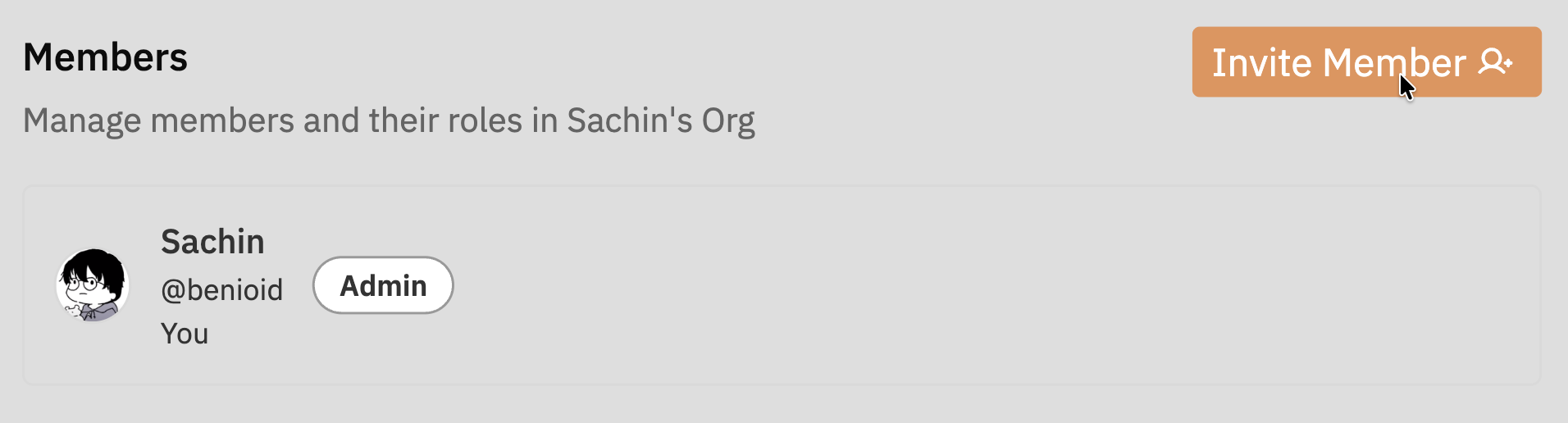
- Name - Their display name and avatar from GitHub/Google
- Role - Admin or Member
Changing a Member’s Role
To promote a member to Admin or demote an Admin to Member:1
Find the member
Open Organisation Settings and locate the person in the Members list.
2
Click the role dropdown
Click on their current role badge to open the dropdown.
3
Select the new role
Choose Admin or Member. The change takes effect immediately.
Removing a Member
To remove someone from your organisation:1
Find the member
Open Organisation Settings and locate the person in the Members list.
2
Click Remove
Click the Remove button next to their name.
3
Confirm removal
Confirm the removal when prompted.
What happens when you remove someone:
- They immediately lose access to the organisation
- They cannot see any projects or data
- Their past activity (comments, task updates) remains but shows their name
- They can be re-invited later if needed
Member Roles Explained
Admin Role
Admins have full control over the organisation:Member Role
Members can work on projects but cannot manage the organisation:Both roles have equal access to projects and tasks. The difference is only in organisation management capabilities.
Transferring Ownership
If you need to transfer full ownership of an organisation (e.g., you’re leaving the company):1
Promote the new owner to Admin
Ensure the person taking over has the Admin role.
2
(Optional) Demote yourself
If you’re staying as a regular member, another admin can demote you.
3
Leave the organisation
If you’re leaving entirely, you can now leave the organisation from settings.
Best Practices
Least privilege
Give people Member role by default. Only promote to Admin those who need to manage the organisation.
Multiple admins
Have at least two Admins. If one is unavailable, the other can still manage the organisation.
Prompt removal
Remove members promptly when they leave your team or company to maintain security.
Verify emails
Before inviting, confirm you have the correct email - the one associated with their GitHub/Google account.
Troubleshooting
Invitee didn't receive the email
Invitee didn't receive the email
Problem: The person you invited says they didn’t get an email.Solutions:
- Ask them to check their spam/junk folder
- Verify you entered the correct email address
- Revoke the old invitation and send a new one
- Have them check if emails from your domain are blocked
Invitation link doesn't work
Invitation link doesn't work
Problem: Clicking the invitation link shows an error.Possible causes:
- The invitation expired (after 7 days)
- The invitation was cancelled
- The link was copied incorrectly
Member can't see projects
Member can't see projects
Problem: A new member says they can’t see any projects.Possible causes:
- They signed in with a different account than the one invited
- There’s a sync delay
- Ask them to refresh the page
- Verify they’re signed in with the correct account (check the email in their profile)
- Check the members list to confirm they appear
Can't invite more members
Can't invite more members
Problem: The invite button is disabled or shows an error.Possible causes:
- You’re not an Admin
- The selected organisation is a personal organisation
- Check your role - only Admins can invite
- Check that you’ve selected a team organisation
Removed member still has access
Removed member still has access
Problem: Someone you removed says they can still access the organisation.Possible causes:
- Browser cache
- They have a different account that’s still a member
- Ask them to clear their browser cache and refresh
- Check if they might be signed in with a different account
- Verify they’re actually removed in your members list
Related Documentation
- Organisations - Creating and managing organisations
- Authentication - How sign-in works