

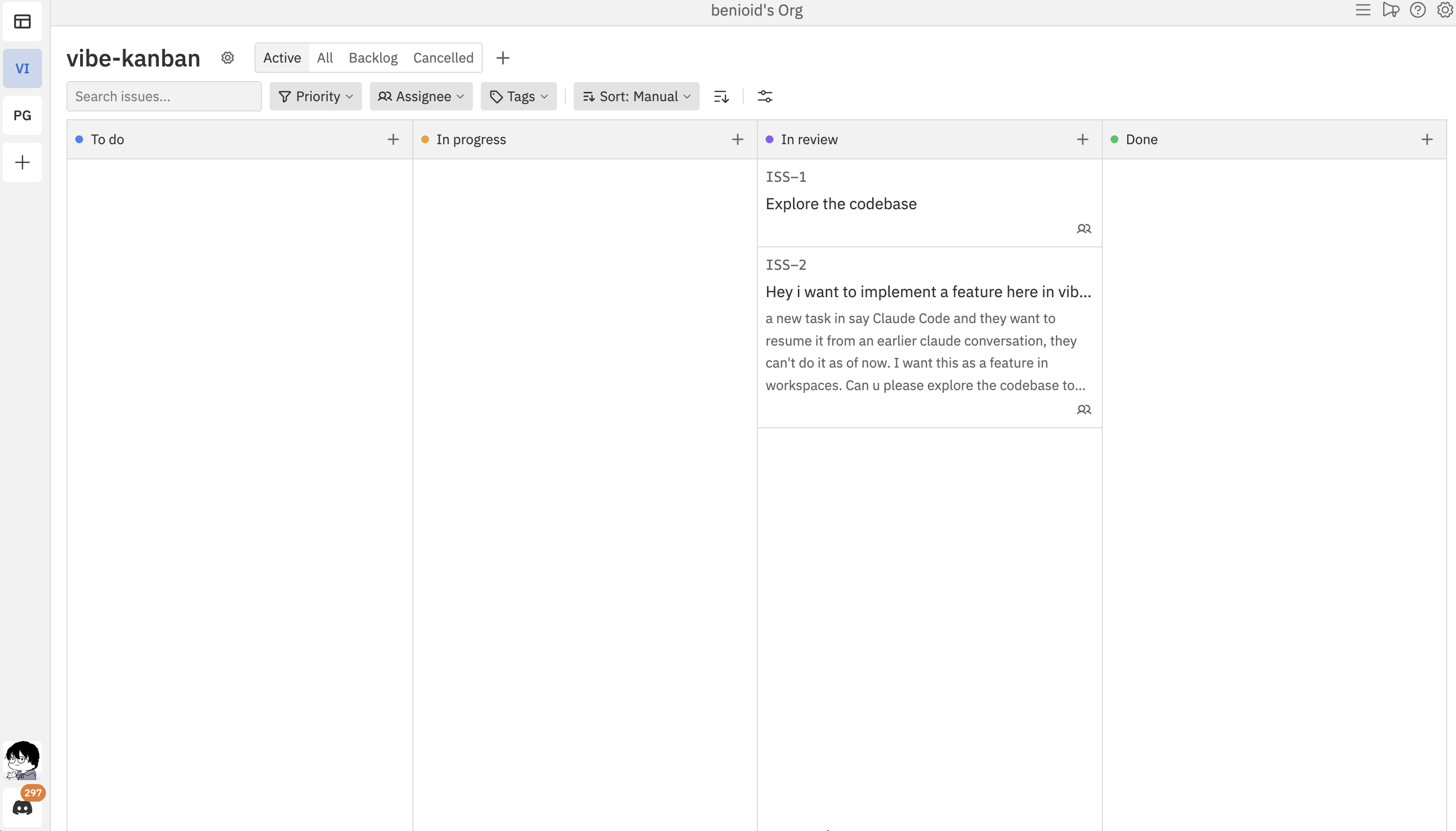
What is a Project?
A project is a container for related work within your organisation. Think of it as a dedicated space for a specific initiative, product, or team goal. Each project has:- Issues - Individual work items (bugs, features, tasks)
- Statuses - Columns on your kanban board (To Do, In Progress, Done, etc.)
- Tags - Labels for categorising issues
- Team access - All organisation members can view and work on project issues
Project Sidebar
The left sidebar provides quick access to your projects and workspaces.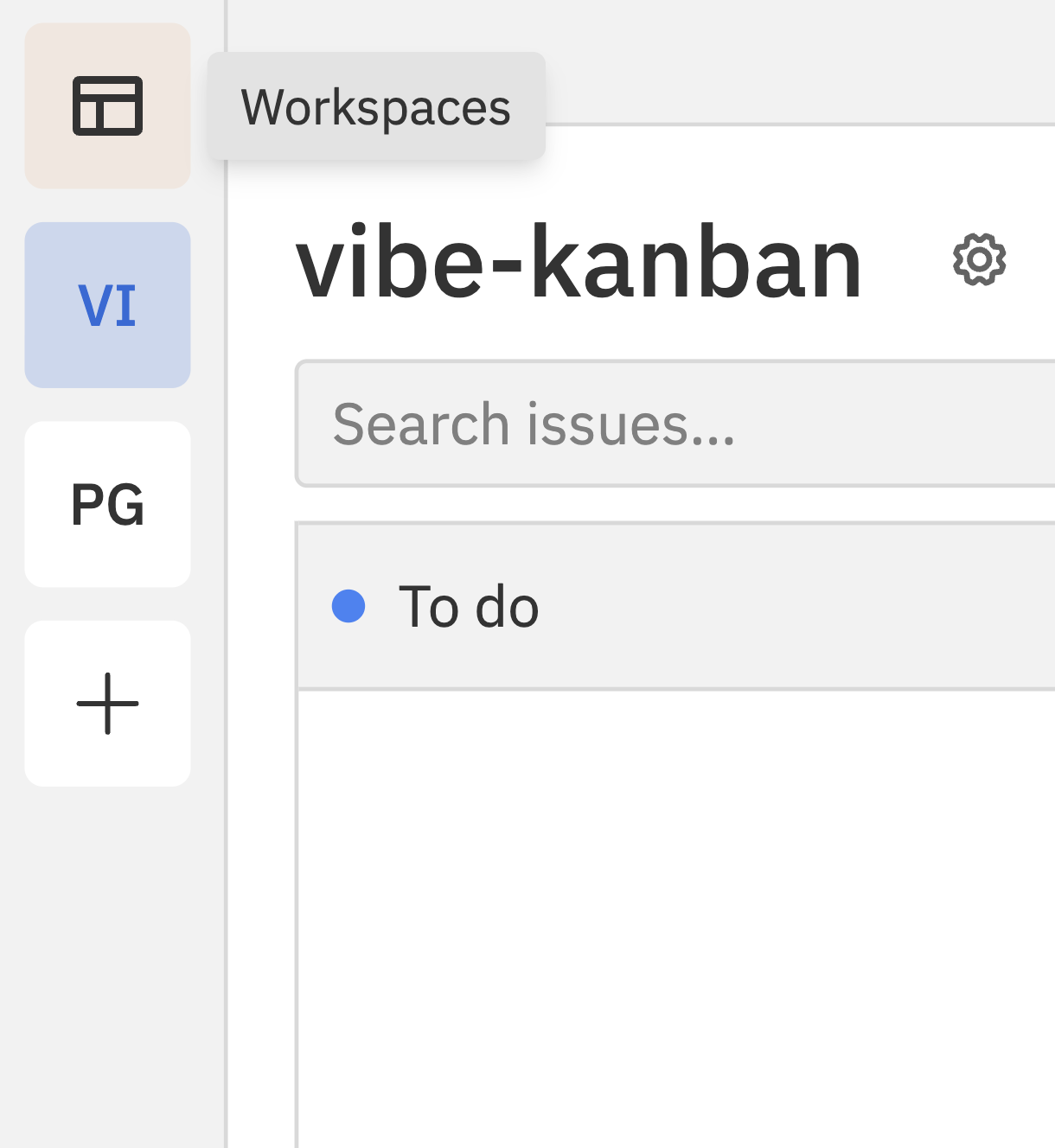
Sidebar Elements
Project Icons
Each project appears as a square button with a two-letter abbreviation of the project name. The currently selected project is highlighted.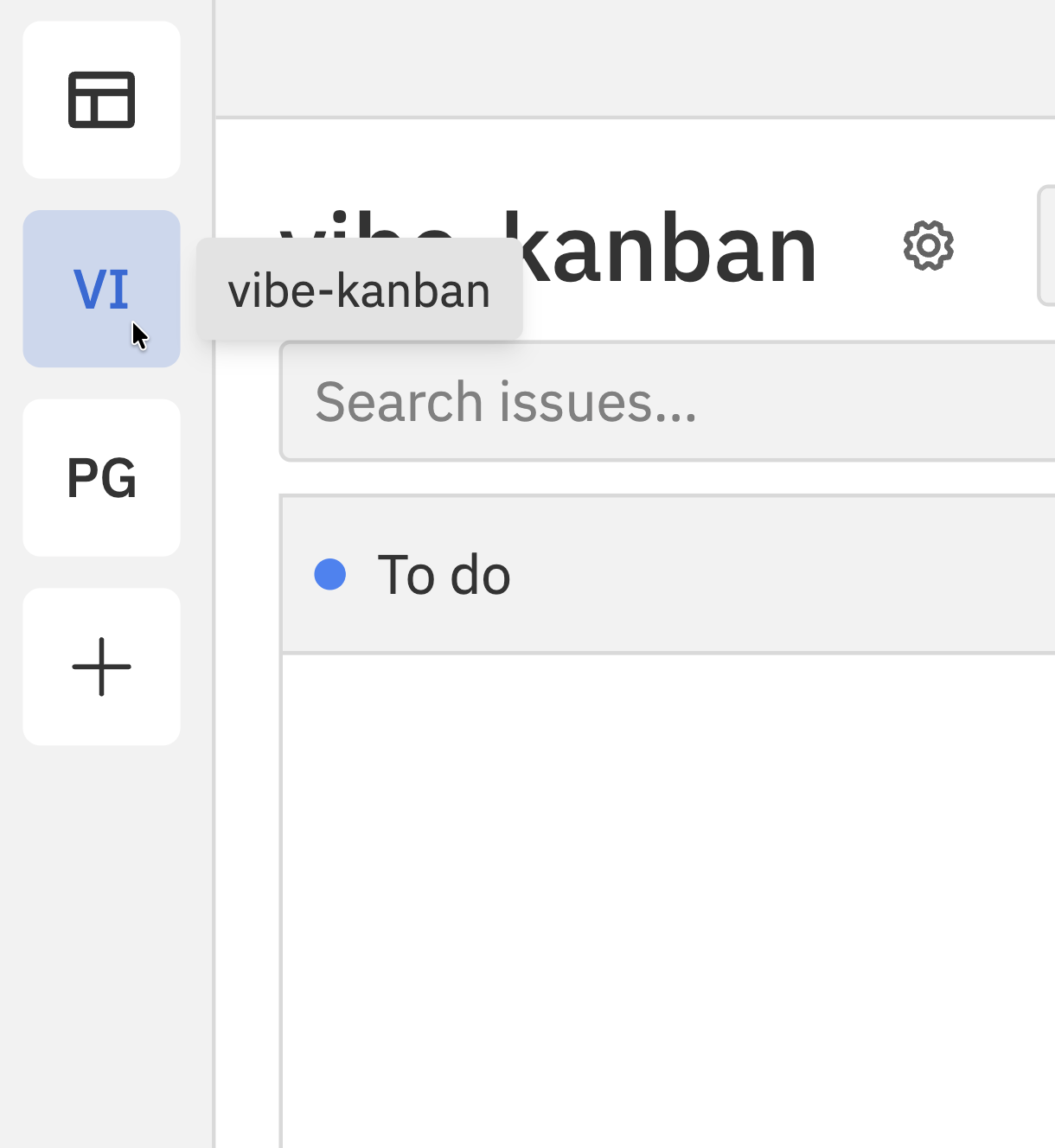
Creating a Project
1
Open your organisation
Sign in and select your organisation from the sidebar or organisation switcher.
2
Click Create Project
Click the + New Project button in the sidebar or on the projects page.
3
Enter project details
Fill in the project information: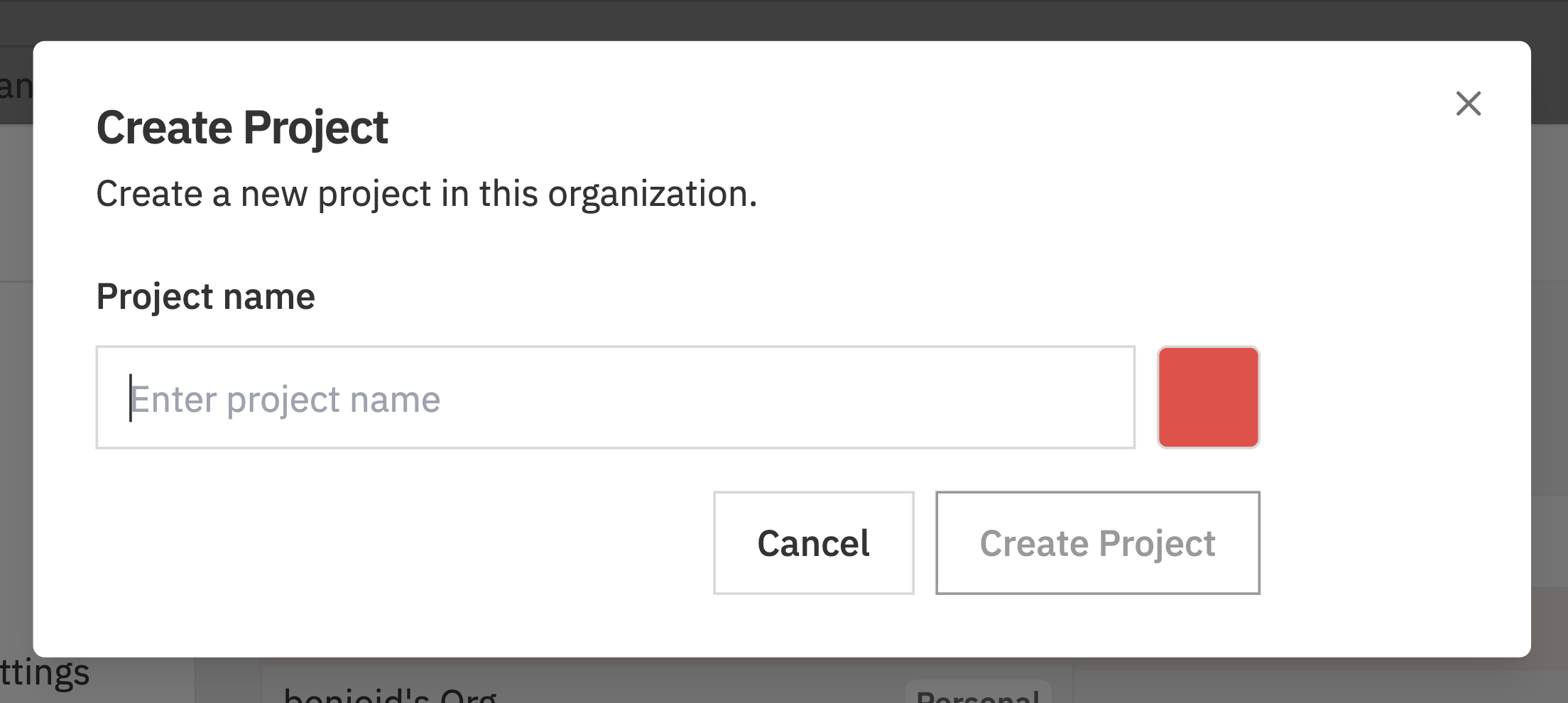
4
Click Create
Click Create Project to create your project. You’ll be taken to your new project’s kanban board.
Default Statuses
New projects come with six default status columns:Hidden statuses don’t appear as columns on the board, but you can still access issues in them via the status tabs (e.g., “Backlog” or “Cancelled” tabs).
Project Settings
Access project settings by clicking the gear icon () next to the project name.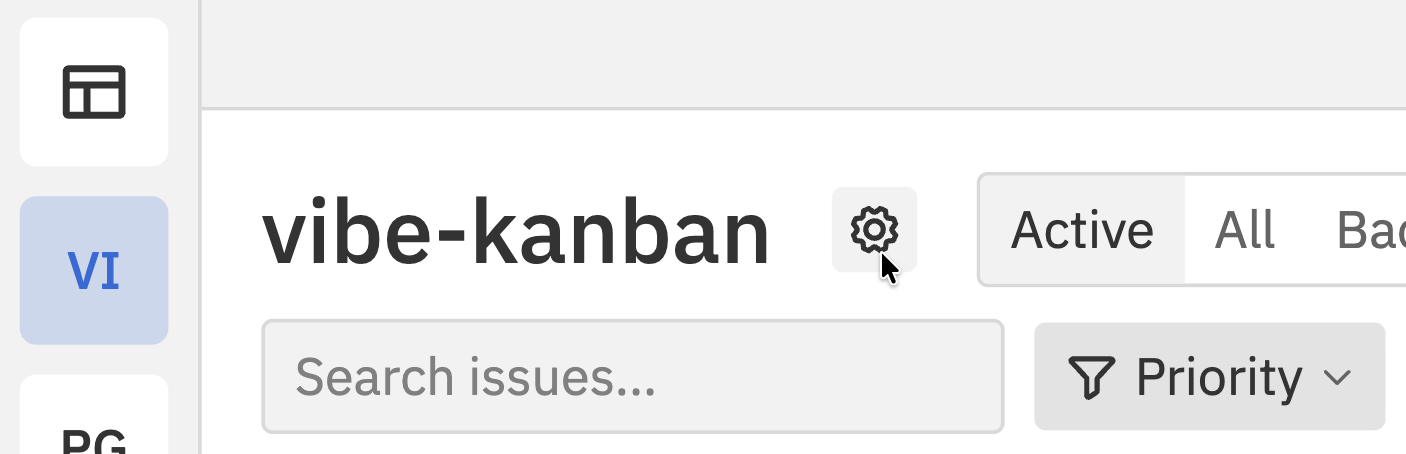
Renaming a Project
- Open project settings
- Edit the Project name field
- Click Save
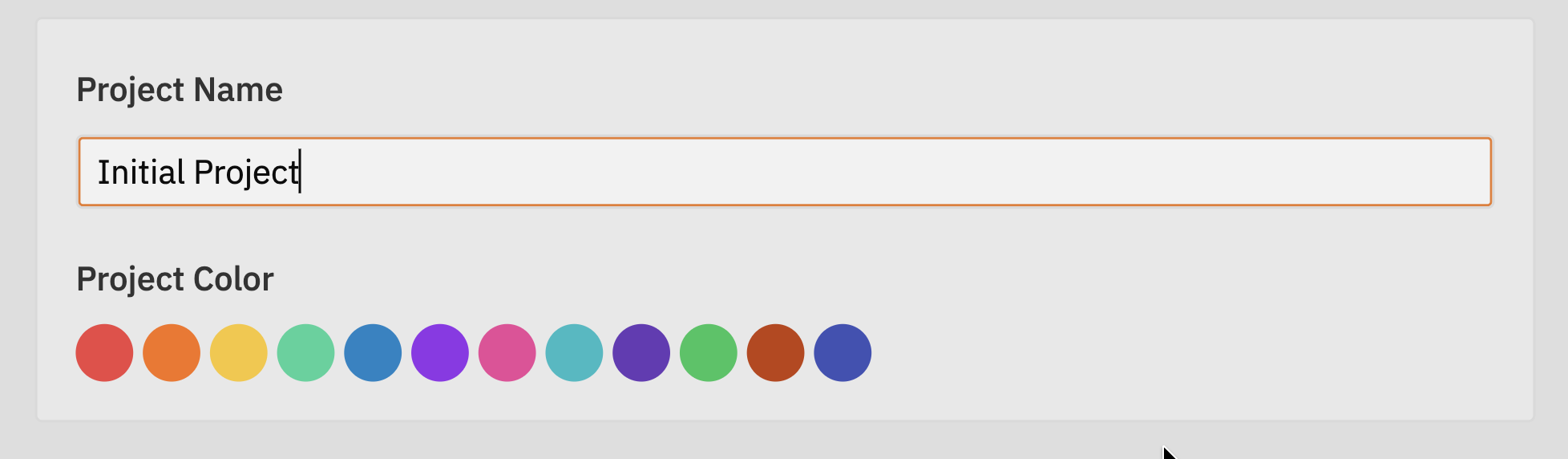
Changing Project Colour
- Open project settings
- Click the colour selector
- Choose a new colour
- Click Save
Switching Between Projects
You have several ways to switch projects: From the sidebar:- Click any project name in the sidebar to open it
- Click the current project name in the header
- Select a different project from the dropdown
Deleting a Project
To delete a project, go to Settings → Remote Projects:1
Open Remote Projects settings
Go to Settings and select Remote Projects from the sidebar.
2
Find the project
Select the organisation and locate the project you want to delete.
3
Open the menu
Hover over the project and click the ⋯ (three dots) menu.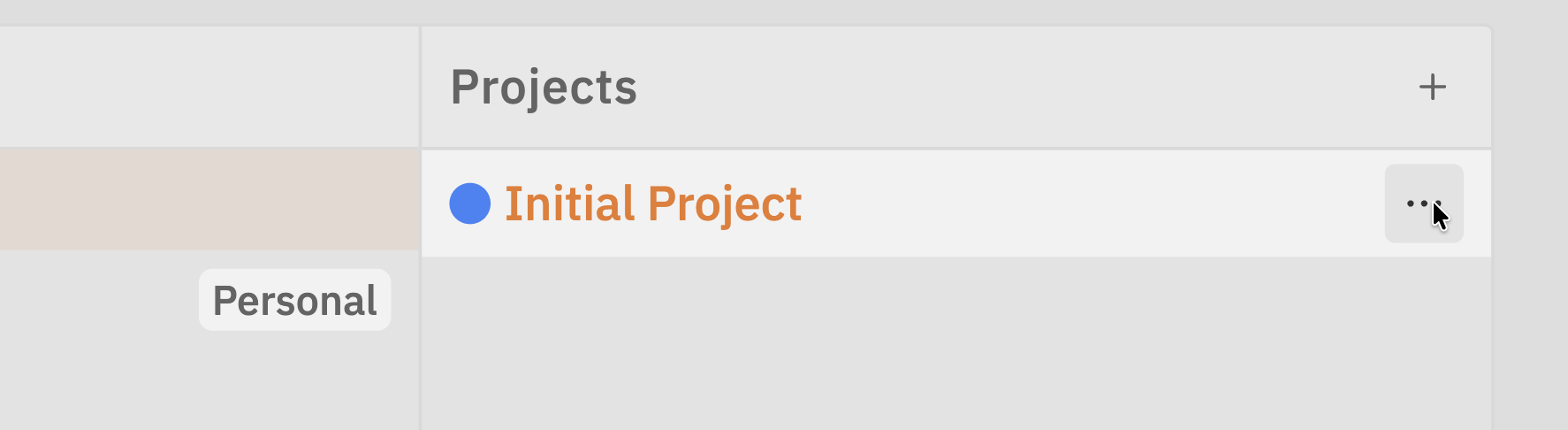
4
Click Delete
Select Delete from the menu and confirm when prompted.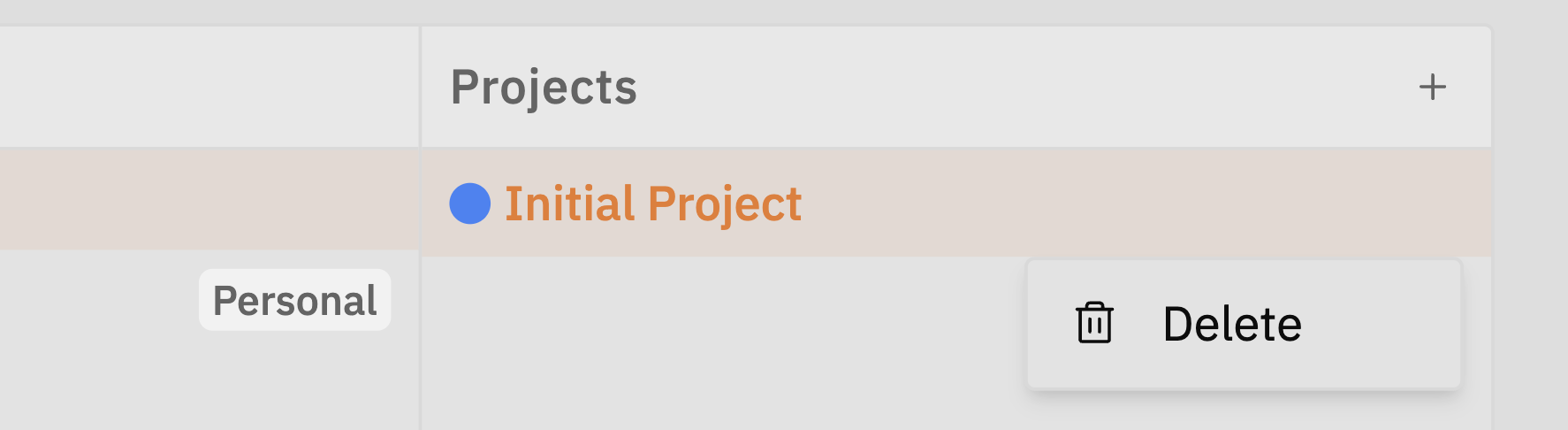
Before deleting, consider whether you might need any of the issues or their history. There’s no way to recover a deleted project.
Best Practices
One project per initiative
Create separate projects for distinct initiatives rather than putting everything in one project. This keeps your boards focused and manageable.
Use descriptive names
Choose project names that clearly describe what the project is about. “Mobile App v2” is better than “Project A”.
Consistent status columns
Try to use similar status columns across projects so team members can switch between projects without confusion.
Archive completed work
Once issues are done, you can hide the Done column or create an Archive status to keep your board clean.
Related Documentation
- Issues - Creating and managing issues
- Kanban Board - Using the board interface
- Customising Your Board - Configuring columns and display settings
- Remote Projects Settings - Managing projects from Settings