

Already using Vibe Kanban locally? Cloud uses the same interface you’re familiar with. The difference is your data syncs to the cloud and you can invite team members.
Step 1: Launch Vibe Kanban
If you haven’t already, start Vibe Kanban:http://localhost:....
Step 2: Sign In
To access Cloud features, you need to sign in.1
Click Login
Click the Login button in the sidebar or when prompted.
2
Choose a sign-in method
Select how you want to sign in:
- Sign in with GitHub - Use your GitHub account
- Sign in with Google - Use your Google account
3
Authorise the application
You’ll be redirected to GitHub or Google. Sign in if needed, then click Authorize or Allow to grant Vibe Kanban access.
Vibe Kanban only requests access to your basic profile (name, email, avatar). It cannot access your private repositories or post on your behalf.
4
Return to Vibe Kanban
After authorising, you’re automatically redirected back and signed in.
Step 3: Your Personal Organisation
When you sign in for the first time, a personal organisation is automatically created for you, along with an Initial Project to get you started. This is your private workspace.Personal organisations are just for you - you cannot invite other members. To collaborate with a team, create a new organisation (see Step 5).
Step 4: Create Your First Project
Now create a project to organise your work.1
Click New Project
Click the + New Project button in the sidebar.
2
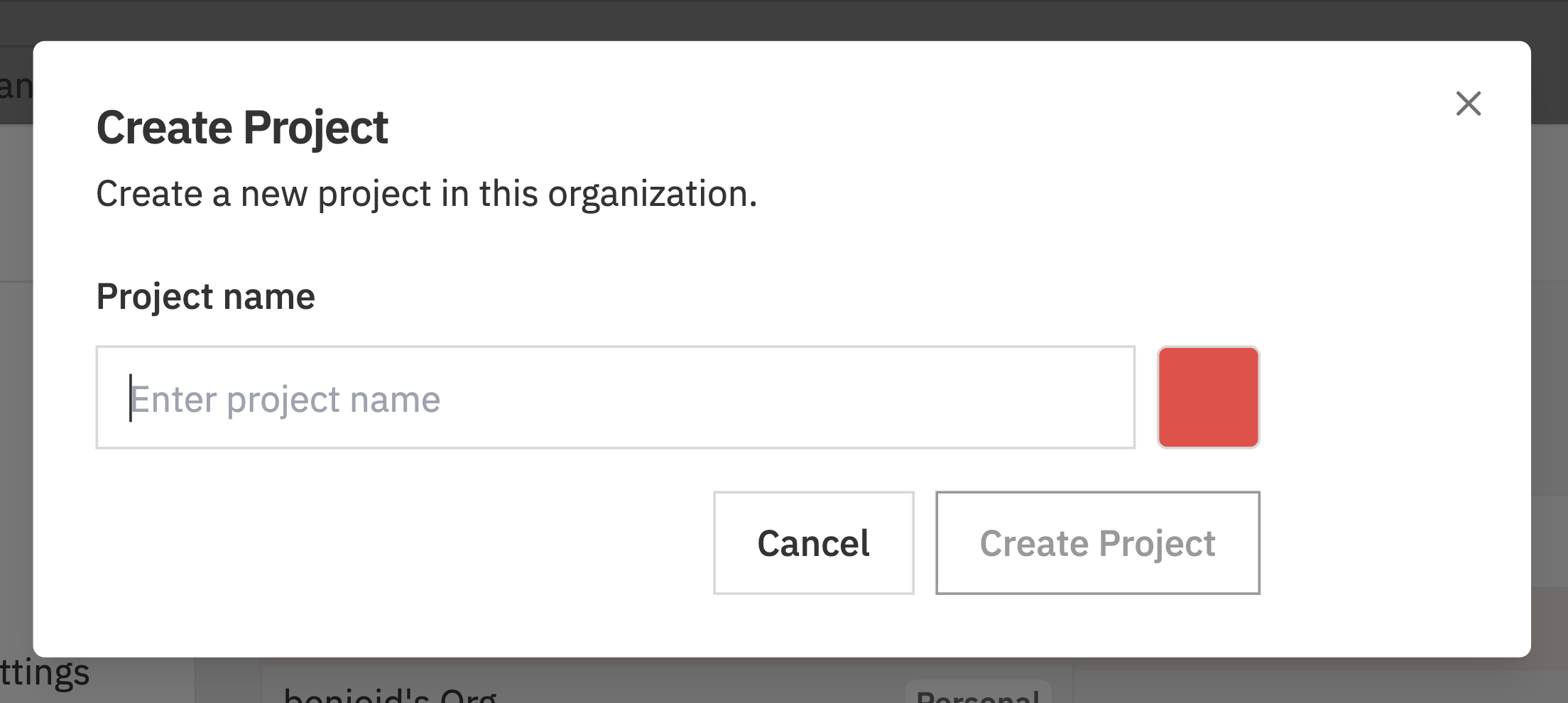
Enter project details
- Name - What you’re working on (e.g., “Mobile App”, “Website Redesign”)
- Colour - Pick a colour to identify the project
3
Click Create
Your project is created with a kanban board ready to use.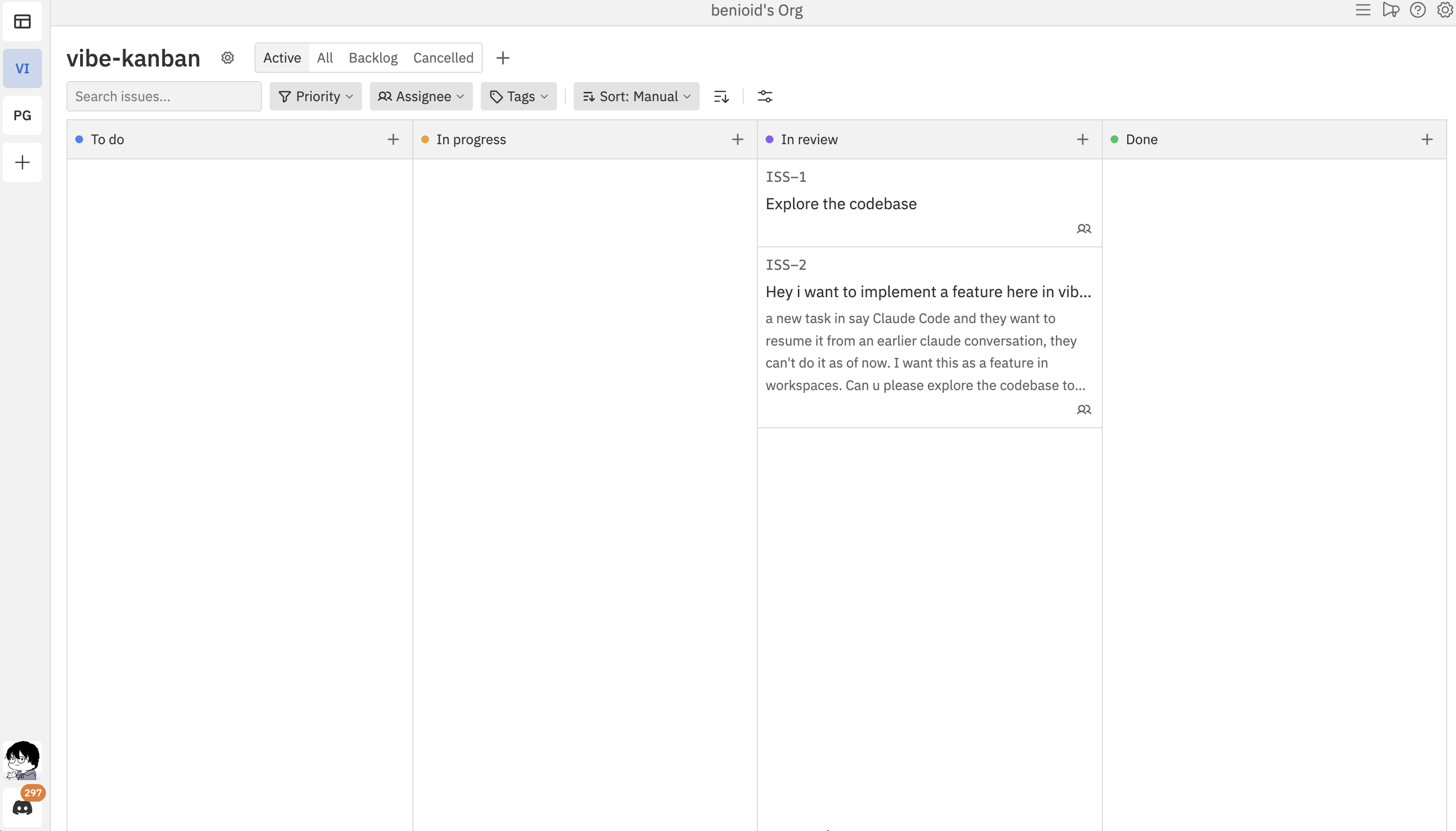
Step 5: Invite Team Members (Optional)
Create a team organisation to collaborate with others, then invite as many members as you need. Team organisations and member invites are free, but new paid subscriptions are closed.1
Invite team members
Open Organisation Settings (click the gear icon next to your org name), then: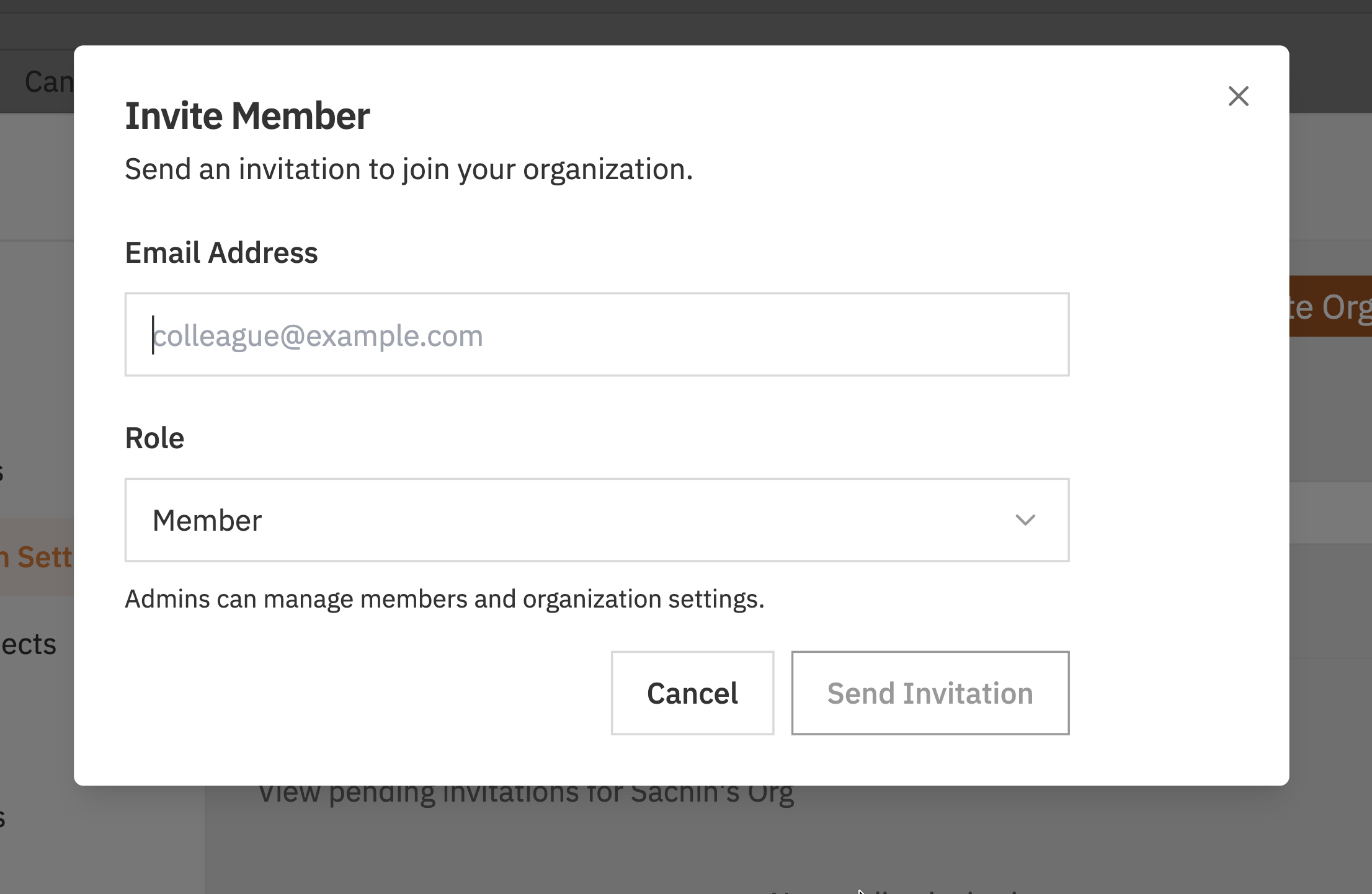
- Click Invite Member
- Enter your teammate’s email address
- Select their role (Member or Admin)
- Click Send Invitation
You’re Ready!
You now have:- ✅ A Cloud account
- ✅ An organisation for your team
- ✅ A project with a kanban board
- Create issues to track your work
- Learn the kanban board to manage tasks
- Customise your board with columns and tags
- Invite more team members to collaborate
Signing Out
To sign out:- Click your profile icon in the bottom of the left sidebar
- Click Sign out

Switching Between Local and Cloud
You can use both local projects and Cloud projects:
Both appear in the same Vibe Kanban interface. Local projects show in one section, Cloud projects in another.
Troubleshooting
I can't sign in
I can't sign in
Possible causes:
- Pop-up blocker preventing the OAuth window
- Network connectivity issues
- Disable pop-up blocker for localhost
- Check your internet connection
- Try a different browser
I don't see Cloud features
I don't see Cloud features
Possible causes:
- You’re not signed in
- Click Login in the sidebar
- Complete the sign-in process
My teammate can't see our projects
My teammate can't see our projects
Possible causes:
- They haven’t accepted the invitation
- They signed in with a different email
- Check if the invitation is still pending in your Members settings
- Resend the invitation
- Verify they’re using the email address you invited
Related Documentation
- Authentication - More about signing in and sessions
- Organisations - Managing your organisation
- Team Members - Inviting and managing collaborators