

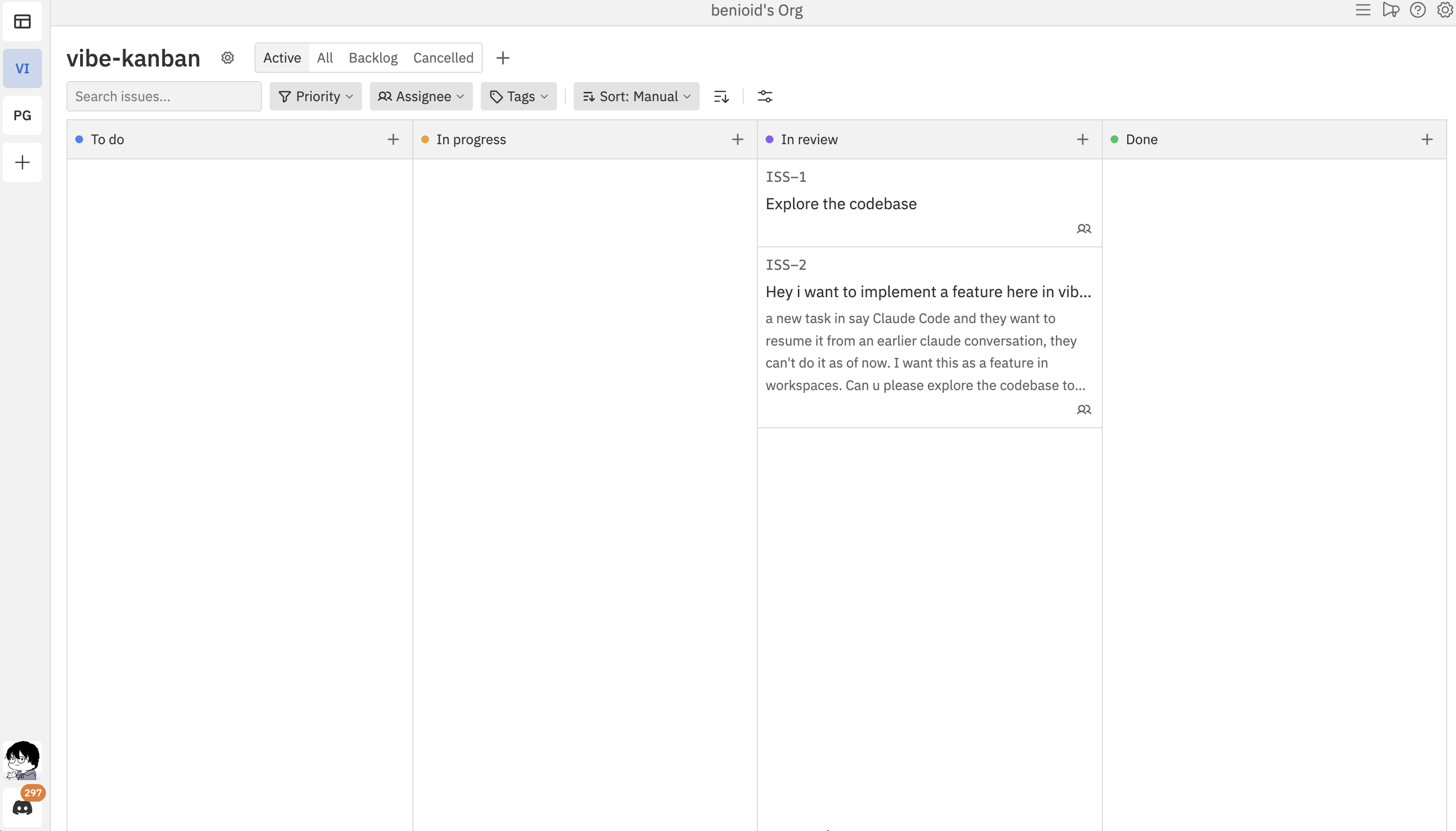
Board Layout
The kanban board consists of:- Filter Bar - Search, filter, and sort your issues (top)
- Status Columns - Vertical columns representing workflow stages
- Issue Cards - Individual work items within columns
- Column Headers - Show status name with colour indicator
Status Columns
Each column represents a status in your workflow. By default, projects have six statuses:
Two additional statuses are hidden by default: Backlog (for ideas and future work) and Cancelled (for issues that won’t be done). You can access them via the status tabs above the board.
You can customise these columns - add new ones, rename them, change colours, or hide/show ones you need.
Issue Cards
Each card shows key information at a glance:- Simple ID - The issue identifier (e.g., ISS-1)
- Title - What needs to be done
- Priority - Colour-coded indicator (if set)
- Assignees - Avatar(s) of assigned team members
- Tags - Coloured labels (if any)
Drag and Drop
Move issues between columns and reorder them within columns using drag and drop.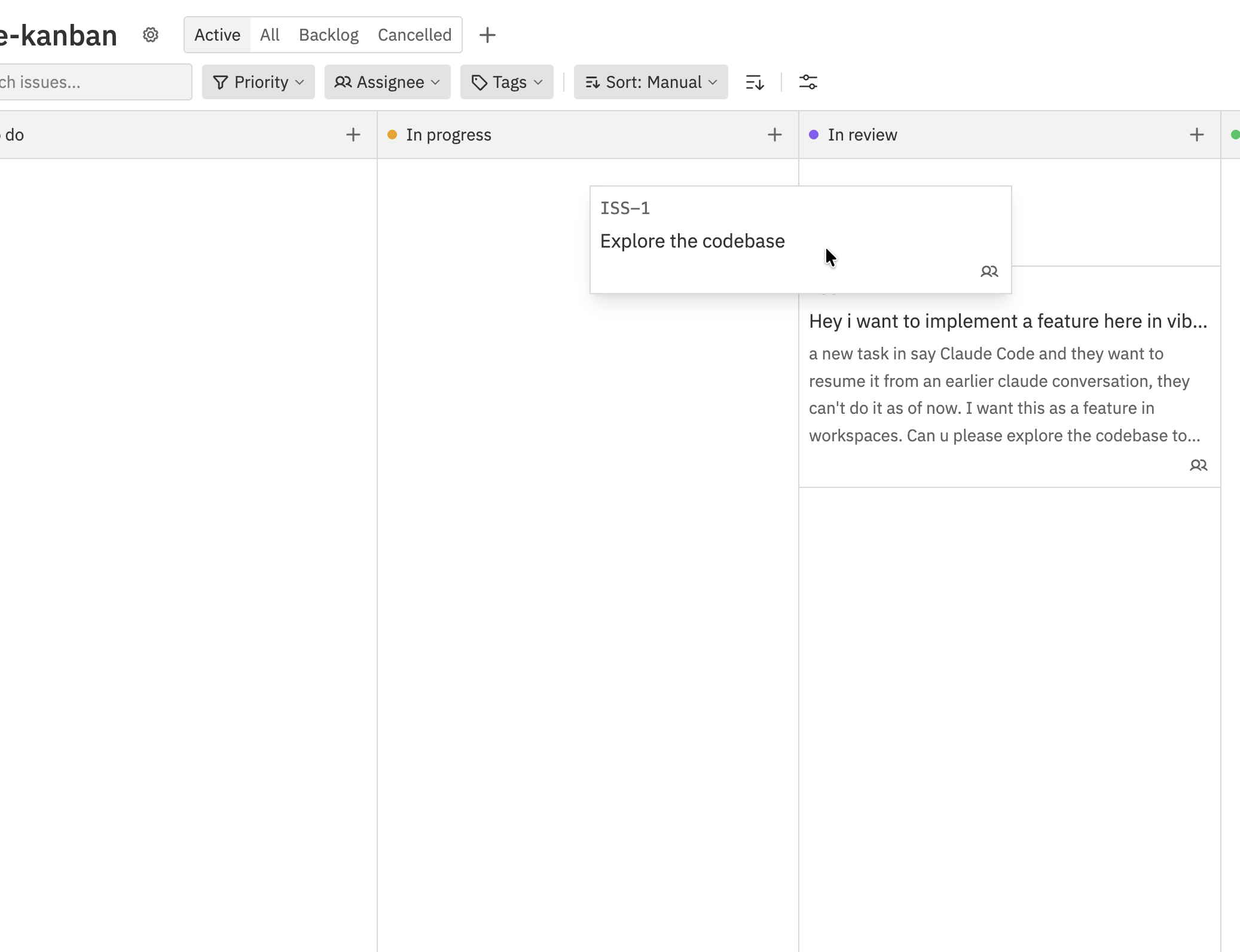
Moving Between Columns
To change an issue’s status:- Click and hold an issue card
- Drag it to the target column
- Release to drop it
Reordering Within a Column
To change the order of issues within a column:- Make sure you’re in Manual sort mode (check the sort dropdown in the filter bar)
- Click and hold an issue card
- Drag it up or down within the same column
- Release to drop it in the new position
Reordering only works when sort mode is set to Manual. If you’re sorting by Priority, Created, or another field, the order is determined automatically and you can’t drag to reorder.
Drag Indicators
While dragging, you’ll see visual feedback:- Cursor changes - Shows you’re in drag mode
- Drop target - Highlights where the card will land
- Card shadow - Shows the card being moved
Status Tabs
Above the board, tabs let you switch between views: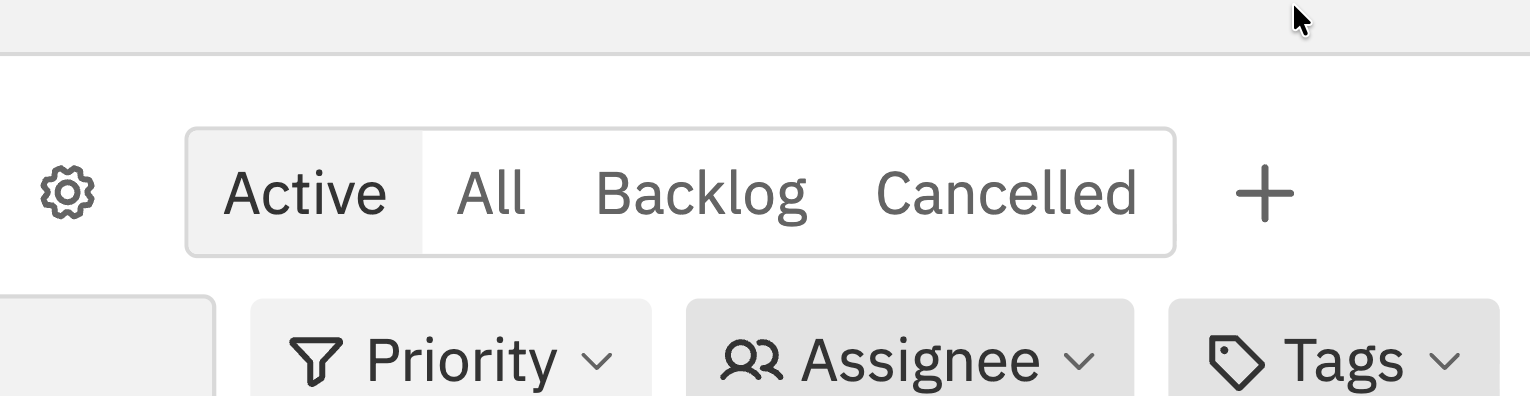
Hidden status tabs (like Backlog or Cancelled) only appear if you’ve hidden those statuses in Display Settings. This is useful for keeping your board clean while still having quick access to archived or backlogged items.
Multi-Select
Select multiple issue cards to perform bulk actions directly from the board.How to Select
- Cmd/Ctrl + Click a card to toggle it in or out of the selection
- Shift + Click a card to select a range from the last selected card
- X to toggle the currently open issue
- Shift + J / ↓ or Shift + K / ↑ to extend the selection by one issue
- Cmd/Ctrl + A to select all visible issues
- Escape to clear the selection
Working with the Board
Opening an Issue
Click any issue card to open the issue panel on the right side of the screen. The panel shows full details and lets you edit the issue.Quick Status Change
Instead of opening an issue, you can change its status by dragging it to another column. This is the fastest way to update many issues.Keyboard Shortcuts
Real-Time Collaboration
The board updates in real-time as team members make changes:- Issue moved - Cards animate to their new position
- Issue created - New cards appear automatically
- Issue updated - Changes to titles, priorities, etc. appear instantly
- Issue deleted - Cards disappear from the board
If you and a teammate move the same issue at the same time, the last action wins. The board will show the final position after both actions complete.
Empty Columns
Columns with no issues show an empty state. You can:- Drag issues into empty columns
- Use the + button to create a new issue in that column
- Hide the status in Display Settings if you don’t need it on the board

Best Practices
Limit work in progress
Don’t have too many issues in “In Progress”. It’s better to finish work than to start new work. Consider adding WIP limits to your process.
Review regularly
Use the board in daily standups to review what’s in progress and identify blockers. The visual layout makes status updates quick.
Keep columns meaningful
Each column should represent a real stage in your workflow. If issues skip a column, you probably don’t need it.
Use filters for focus
When the board gets busy, use filters to focus on what matters - your assigned issues, high priority items, or specific tags.
Troubleshooting
I can't reorder issues within a column
I can't reorder issues within a column
Make sure you’re in Manual sort mode. Click the sort dropdown in the filter bar and select “Manual”. If you’re sorting by Priority, Created, or another field, the order is fixed.
Issues aren't appearing
Issues aren't appearing
Check your filters - you might have active filters hiding some issues. Click Clear All in the filter bar to reset filters and see all issues.
A column is missing
A column is missing
The column might be hidden. Go to Display Settings and check if the status is set to hidden. Toggle it back to visible.
Changes aren't saving
Changes aren't saving
Check your internet connection. The board requires an active connection to sync changes. If you’re offline, changes won’t be saved until you reconnect.
Related Documentation
- List View - Alternative tabular view for issues
- Issues - Creating and editing issues
- Filtering & Sorting - Finding issues quickly
- Customising Your Board - Configuring columns and display