

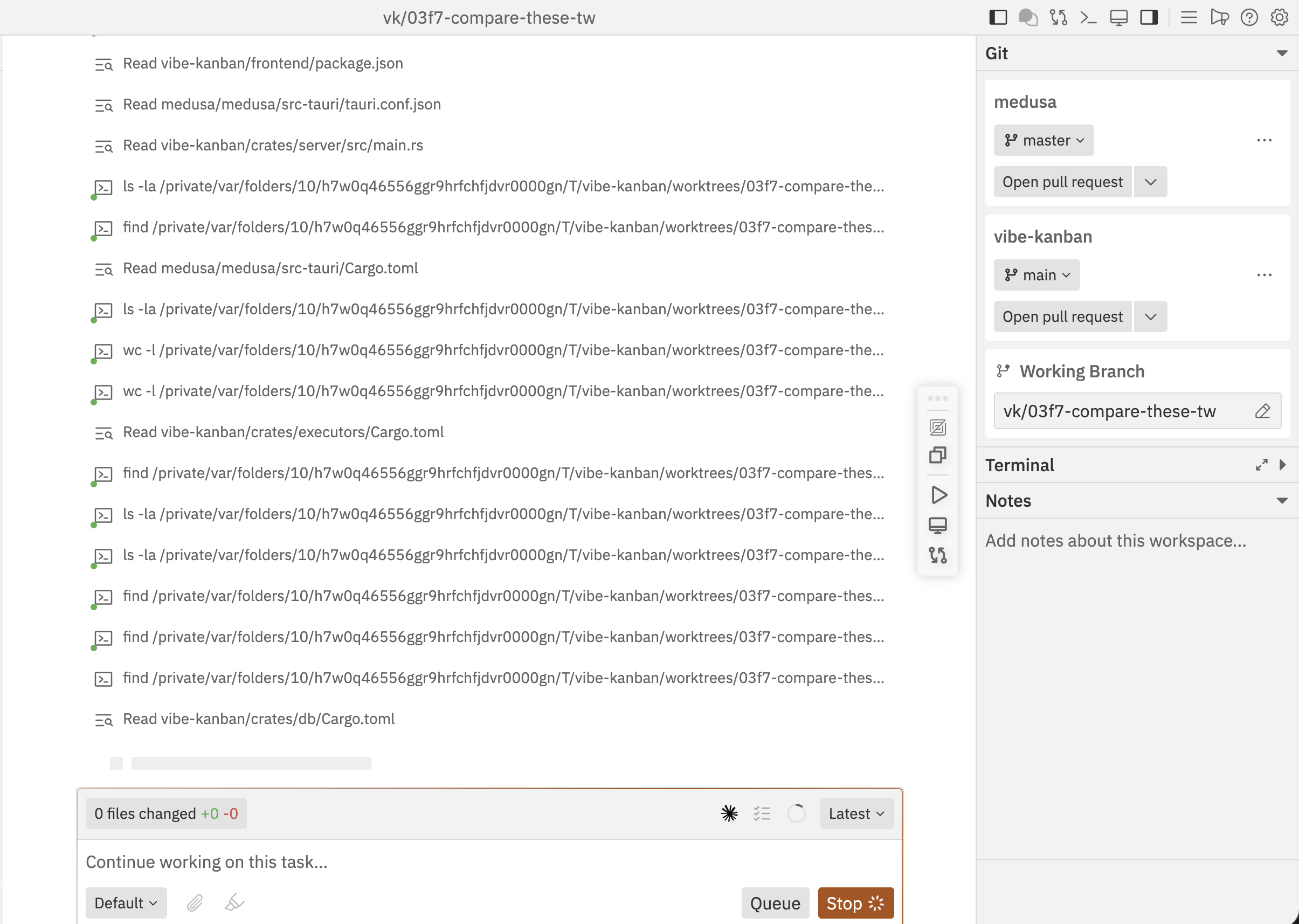
Multi-Repository Support
Add multiple repositories to a single workspace to work on cross-repo tasks.Adding Repositories
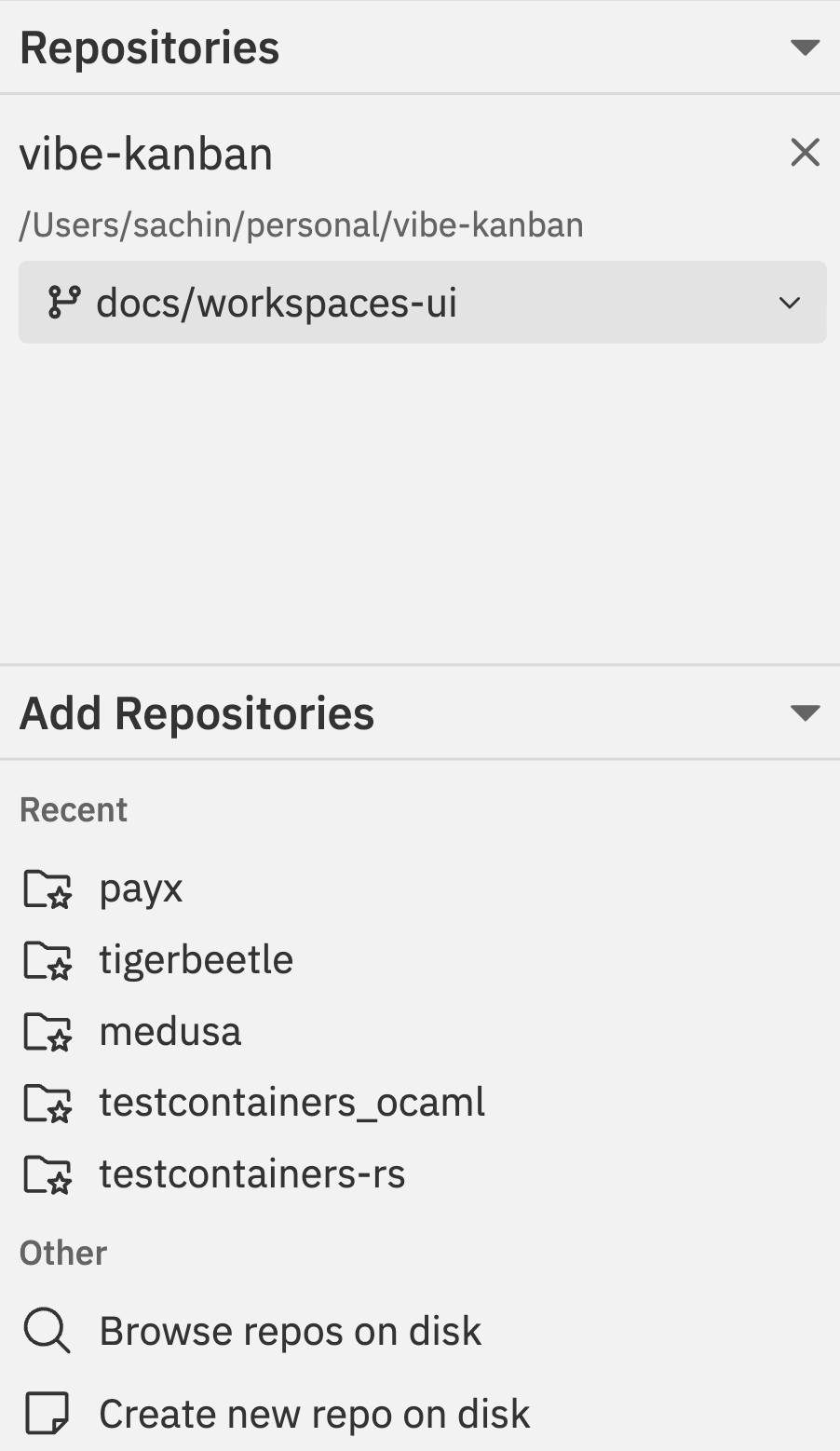
- Click the + button in the workspace sidebar
- Select your project from the dropdown
- Click repositories from the Add Repositories list to include them
- Set the target branch for each selected repository
- Each repo maintains independent git state
Working Across Repos
With multiple repositories in a workspace:- Reference code from one repo while implementing changes in another
- Implement coordinated changes across multiple codebases
- Manage git operations independently per repository
- View changes from all repos in a unified diff view
Repository Panel
Each repository in the workspace shows:Per-Repository Actions
Access repository-specific actions via the command bar:- Open Repo in IDE - Open just this repository
- Copy Repo Path - Copy the repository path
- Repository Settings - Configure repo options
- Git Operations - PR, merge, rebase per repo
Multiple Sessions
Why Use Multiple Sessions?
- Token limits: Start fresh sessions when conversations get long
- Parallel work: Run different tasks or agents simultaneously
- Code review: Start a dedicated review session
- Experimentation: Try different approaches in separate sessions
Creating a New Session
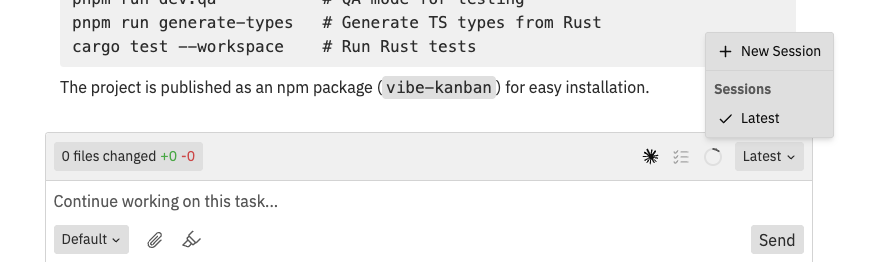
- Click the session dropdown in the chat box toolbar
- Select New Session from the dropdown
- Select the agent to use for the new session
- Start your conversation
Switching Between Sessions
The session dropdown in the chat box toolbar shows all sessions:- Latest - the most recent session
- Older sessions show their creation timestamp
- Click any session to switch to it
- Each session maintains its own conversation history
Session Indicators
Running Multiple Agents
Different sessions can use different coding agents:- Create a new session
- Select a different agent (Claude Code, Gemini CLI, etc.)
- Both sessions can run in parallel
- Switch between them to monitor progress
Each session operates independently. Changes made by one agent are visible to other sessions through the shared workspace files.
Example: Full-Stack Feature
Here’s a practical workflow for implementing a feature across frontend and backend repositories:1
Create workspace with both repos
Create a new workspace, select your project, and add both
frontend and backend repositories. Set target branches to main for both.2
Describe the full task
In your initial message, describe the complete feature:
3
Agent works across repos
The agent reads code from both repositories and makes coordinated changes. It understands the relationship between frontend and backend.
4
Test integration
Start the dev server (if configured for one repo, you may need to start the other manually via terminal). Test that the frontend correctly calls the backend.
5
Create separate PRs
Create a PR for each repository:
- Open command bar (
Cmd/Ctrl + K) - Go to Repo Actions
- Select Create PR for the backend repo
- Repeat for the frontend repo
- In PR descriptions, reference the related PR
6
Merge in order
Merge backend first (since frontend depends on it), then merge frontend.
Best Practices
Multi-Repo Workflows
- Start with a plan: Describe the cross-repo changes needed upfront
- Coordinate commits: Ensure related changes are committed together
- Test integration: Use the preview to verify repos work together
- Create linked PRs: Reference related PRs across repositories (e.g., “Related to frontend#123”)
Session Management
- One focus per session: Keep each session focused on a specific goal
- Document in notes: Use workspace notes to track which session does what
- Limit concurrent sessions: Too many active sessions can be confusing
- Review before switching: Check the changes panel when switching sessions
Related Documentation
- Interface Guide - Understanding the workspace layout
- Git Operations - Managing git across repositories
- Command Bar - Quick actions for repo management